Creating the Borders
Next we are going to fill in the solid grey areas of the header and border.
Create a new layer and name it “border”. Switch to your border layer.
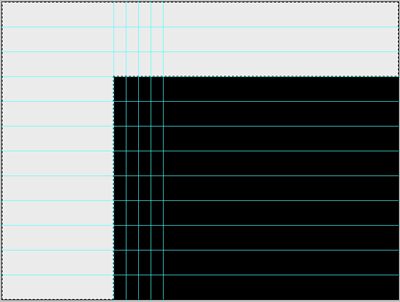
Select the rectangular marquee tool and select the header section – the entire width from the top to the third horizontal guideline. Hold down shift and select the left side to the first guideline. Holding down shift allows you to select multiple areas together.
Select your fill color (I used a very light gray of r235, g235, b235). Using the fill tool, fill in the selection area. This will give you the following two-layer image.
[…] It happens about once a year. I get this urge to redesign one of my sites. And this one with its wavy lines just seemed due. So here is my new design. As you can probably tell I’m on a minimal design kick right now. […]